General
Defining your service identity.
Name
The name of the service.
Short description
Short text to briefly describe the service.
Description
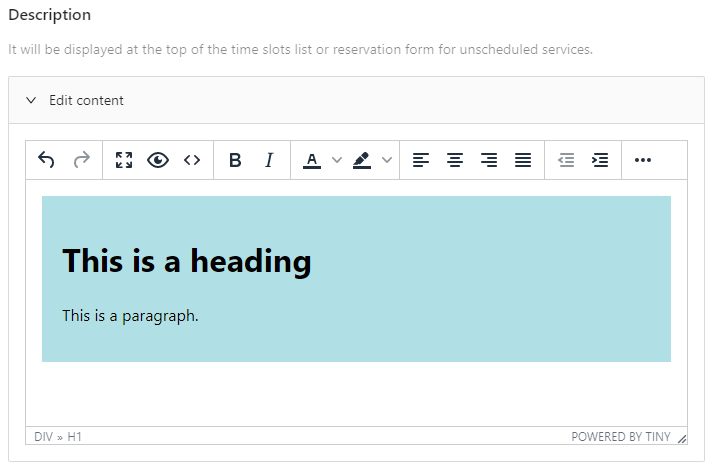
It will be displayed at the top of the time slots list (or booking form for unscheduled services).
You can use HTML code for the description
Color
The color of the sevice, useful to quickly identify the service among the others.
Slot duration
How to define the duration of a single time slot.
Possible options:
Let service providers decide
Just delegate the slot duration configuration to the single service providers (see Personal Settings).
Inherited from the entire available interval
Let's say you have scheduled an availability plan that goes like this:
Every day Monday to Friday: from 8:00am to 11:00am and from 2:00pm to 6:00pm
So on a generic Monday, you have 2 availability intervals:
- 8:00am to 11:00am (3 hours)
- 2:00pm to 5:00pm (4 hours)
By default the plugin splits such intervals into time slots of fixed duration, so assuming that this service has a duration of 1 hour, in the example above you have 7 total time slots on Monday (3 from 8:00am to 11:00am and 4 from 2:00pm to 5:00pm).
Select this option to consider those intervals as whole timeslots instead (so in the example above you have 2 total timeslots on Monday (3 hours long and 4 hours long respectively).
Fixed
If you select this option, the plugin splits availability intervals into time slots of fixed duration. This is the default behavior.
Location
Choose how to set a location for the service. If a location is present, it will be shown in the frontend with directions and map (unless differently specified).
Possible options:
- No location
No location is assigned. - Inherited from the booking form
The reservation for this service will have the location inherited from the address field of the booking form.infoRequires the presence of the Address field in the booking form.
- Fixed
A fixed location is assigned.infoRequires the presence of one location at least.
Location visibility
Choose if the location must be visible in the frontend. If you choose to hide the location from the frontend, it will still be visible in the backend and usable, for instance, in the email templates.
Show map
A location map is displayed by default. Change this setting to hide the map if not needed.
Requires the configuration of Google Maps.
Create Zoom Meeting
A Zoom Meeting is automatically created after a reservation if this setting is active.
Requires the activation of Zoom Integration.
Time slot capacity
By default, each time slot can accept one reservation only.
If you want to change this, thus allowing multiple reservations (tickets) per time slot, provide the number of the maximum reservations that a single time slot of this service can accept.
The frontend widget shows to the customers how many reservations are left for any given time slot.
Max user tickets per slot
The maximum number of tickets that a customer is allowed to book for a single slot. 0 means up to the maximum available tickets.
Block after one reservation
Even if a single reservation does not max out the available tickets for the time slot(s), activating this setting avoids other reservations to take place for the same time slot(s).
Assignment rule
In case of multiple service providers available for this service, specify which assignment rule the plugin should follow after each reservation.
Possible options:
- Equal
A new reservation is assigned to the provider with less of them assigned (in the service context). Based on reservations that are present in the database. - Direct
Always assign to the same provider. - Random
Picks a random provider.